QR Codes are a fun way of sharing/revealing information to students (and staff).
I have seen this used a lot with iPods and iPads in the classroom and today I was reflecting on the use within MacBook classroom.
A handy free app can be downloaded from here (QR Journal). This app uses the inbuilt camera to read QR Codes or you can copy and paste QR images like the ones below into the app.
I received the following question today about Teacher Dashboard and thought I would share the answer with everyone as it is a fairly common question...
...if students create folders to put inside their subject folder that TD created (so say a folder for each unit) is there the functionality for these sub folders to show up from our end?
Let me answer this by demonstrating with a real example. This student is studying Information and Software Technology (IST). They have obviously listened at some stage, to someone, who has suggested it is best to keep work organised. Firstly they are placing their work in their Teacher Dashboard created IST folder. The teacher sees the following:
All the student's work is visible in the IST folder as expected. The student, however, has in fact organised their work into folders within the IST folder. When the teacher opens the student's folder by click on the folder icon at the top of the student window, they see this:
The student has created four folders within their IST folder. The teacher can view the contents of the folder by simply selecting the individual folder.
Just remember - in the top view you are limited to viewing the most recent 3, 5, 15 or 25 documents.
Until recently, if you wanted to find the location of your document, or place your document in a specific in Google Documents (including Sheets, Slides and Drawings), you would have used the folder icon which was located next to the Document name (see image below).
With the recent updates that have occurred to the Documents user interface this handy icon has disappeared and many have feared, that with it, so has the handy functionality of being able to manage the document location straight from within the document (I have been reading of people frustrated with having to do everything from with Drive).
Well the good news is that this feature has not disappeared - it has merely been relocated. It is now found under the file menu, and has all the functionality of the old icon.
It allows you to view the present location of your document, move it to a new location or add the file to an additional location.
Adding the file to a new (additional) location is something that many beginner/intermediate users can struggle with when moving from more traditional environments like Windows and even OS/X. (I will be doing a separate post about this fantastic feature in the future).
If you wish to add the file to a new location, simply hold the command key if you are on OS/X or the control key if you are using a Windows based machine as you click the additional location.
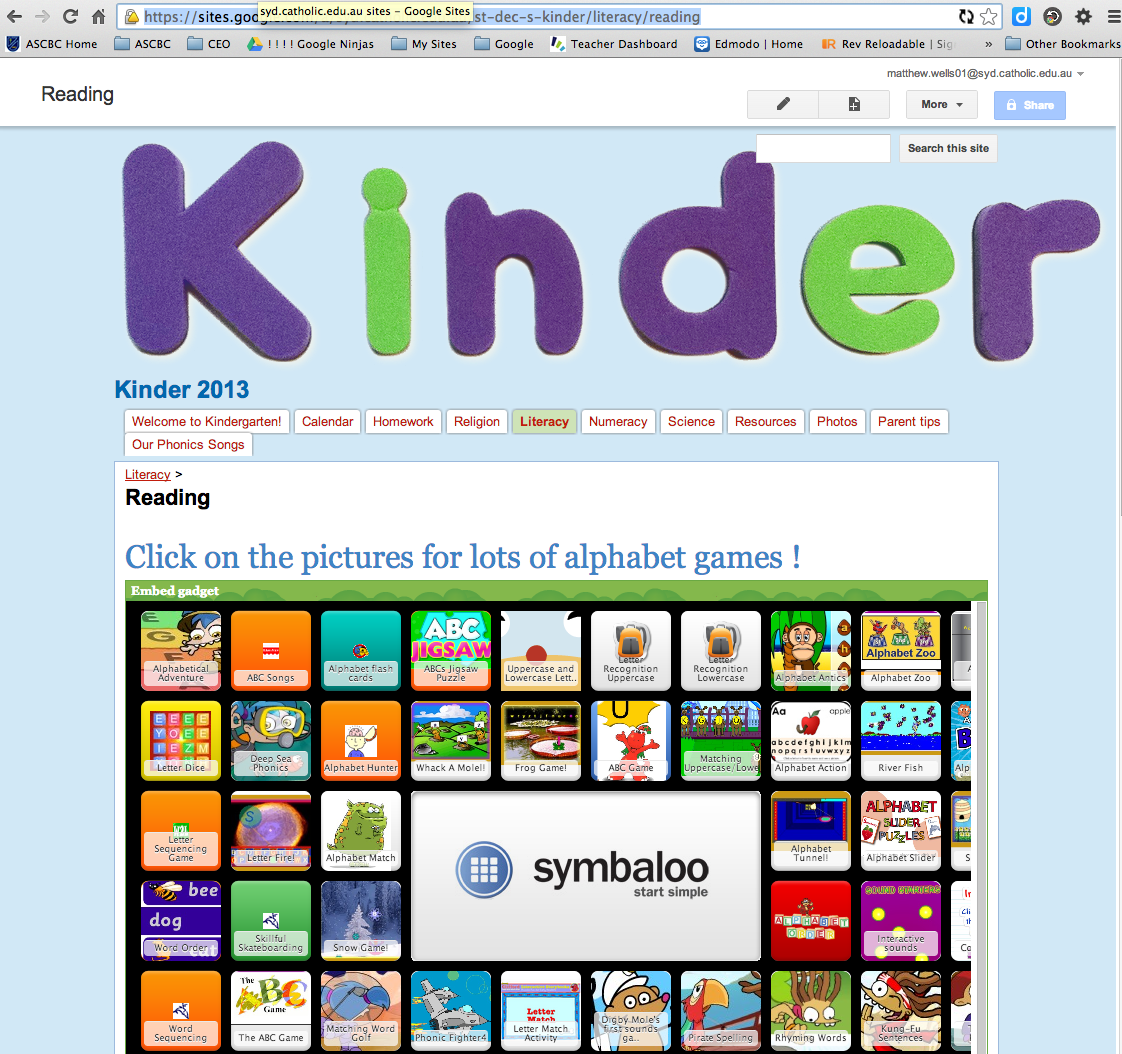
A number of colleagues have been reporting that objects (typically the contents of iframes) are no longer displaying on their Google Site when using Chrome (see image at right - Thank you Maree Rooke for sharing). The objects appear when using another browser such as Internet Explorer or Safari. This appears to have happened with latest release of Chrome (Version 30). Originally we thought that this may have been some kind of bug in either Google Sites or the Chrome Browser.
The Solution :)
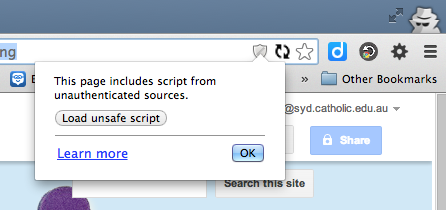
Version 30 of Chrome will not display these objects due to the “potential” that the page contains insecure content. This is shown in the address bar of the browser using a shield icon.
Some may argue that a more "in your face" warning about impending insecure content is more appropriate. I in fact like the subtle way this is done - now that I know what is happening :)
To enable the embeded content, simply click on the shield. A message will appear warning you that the page includes a script from unauthenticated sources. If you know that this script is okay (that is you have placed the iframe on your page) simply click the “Load unsafe script” button. This will enable your content throughout the site.
The site should now be displayed as intended. You will notice that the padlock in the address bar as a small warning triangle present.
Thank you fellow GCT +Adele Raemer for your clear YouTube video.
Well I have toyed with the idea for a while - but I have taken my first plunge in to preparing some video tutorials for my students.
Those who know me would say that this was NOT a first. That I had in fact done all kinds of tutorials about different technologies and uses in the classroom.
What makes this different is that I am setting about preparing videos around the course I teach - a subject in NSW called Information and Software Technology and I am sticking them "out there" for others to provide feedback on and use.
This for me is scary!
But based on my experience of over 30 years of working in high school teaching, I think its a fear shared by many high school teachers. Is what I am doing correct? Have I done this the best way? Is this going to best benefit my students? Is my style of teaching okay? Am I covering the syllabus correctly? Is everything factually correct?
As a beginning high school teacher many years ago, I was given my timetable, my programmes my students - was sent in to the classroom - and then the door was closed.
I was on my own.
And I have survived (somehow)
But what this tends to do for many teachers is force them to work on their own. They don't seem to collaborate in the same that I see my primary colleagues work together.
I would be very interested in hearing from anyone who reads this blog post as to their feelings/beliefs about collaboration between high school teachers - within a school, within a system, globally.
I know for me one of my personal challenges in recent years is to take the chance and just start putting stuff "out there". For me, personally this is a struggle because I do worry that its not good enough or might be wrong. But this process has taught me a lot!
At times it is reaffirming - its great to receive a positive comment or a remark that someone is using something that you have created.
But its also a way in which I can learn - that I can improve.
I believe as an educator that being prepared to take risks - being prepared to make mistakes (lots of them) is such an important part of learning and improving.
I could quietly create these resources for use by MY students in MY classroom - but I choose to share them because hopefully it will make someone else's work a little easier - just as I stand on the shoulders of others who have shared their wonderful work with me.
I think its a shame in this day and age - where there is so much talent in our schools - where we can all be publishers of all kinds of digital media - that we spend so much money purchasing text books that don't really meet the needs of a our modern classroom.
Take a chance today. Share with your (global) colleagues something that you have created for your classroom. A great learning experience. A collaborative project. A story.
Its been a while between posts and a lot has happened.
Tonight I have taken the time to bring my various posts from around the web together under my (relatively) new CEO Cloudshare account.
What is Cloudshare I hear you ask? Cloudshare is the Catholic Education Office, Sydney's deployment of the Google Apps For Education (GAFE) environment.
We now have a system wide deployment of a collaborative virtual learning environment and the challenge for myself and others in my role is encouraging staff to take advantage of this powerful collaborative tool.
Teachers are generally time poor - and this is not going to improve as we all are called to implement the NSW Board of Studies Syllabuses for the Australian Curriculum. I have written before that the only constant in modern life - is CHANGE.
If we get this right - instead of working in isolation (as individuals or individual staffs), teachers can collaborate and share the work load with others that have an interest in their area of teaching - at a time and place that suits the individuals involved.
To steal a line I heard recently - you don't have to be sitting at your desk to work.
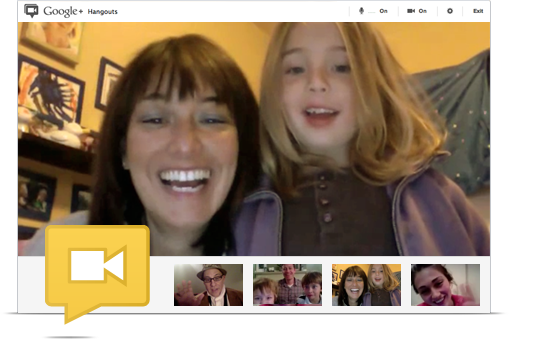
You don't have to be in the same room to work collaboratively. With Google Hangouts you can easily connect with others face to face, sharing resources, hosting virtual meetings - all from a location that suits you - your classroom, desk in the staff room, home, beach - where ever.
With Google Drive its easy to share all kinds of resources as well we collaborating on teaching programs using Docs and developing teaching resources that can be used by multiple teachers. Teachers create wonderful resources for their students and their classrooms - but all too often these resources don't get shared. And the task of creating such resources gets replicated time and time again.
There are other tools available too such as the social bookmarking tools Delicious and Diigo. Twitter is another great tool for collaboration.
But my experience is that many teachers find it hard to engage professionally in an online world. I would love to hear feedback via comments as to why this is so? Are you reluctant to engage in online collaboration? Are you an avid user? Have you developed a PLN? What are your thoughts?
Later this year (June 14 and 15), I will be leading a cohort at the IWBNet Third National ITL MasterClass Conference, which will have at its focus how contemporary educators can make use of such online tools. I look forward to the journey and challenges that preparing for this conference will bring.