Wednesday, 11 December 2013

New Google Sheets

Google Sheets just got better. Some of the new features include…

  • millions of cells to work with
  • no more limits on rows, columns or the numbers of cells you can copy and paste
  • scrolling is faster
  • formulas calculate faster
  • Filter views that can be named and saved 
  • a better user experience (more helpful) when creating formulas
  • over 20 new formulas
  • offline mode
  • improved conditional formatting
  • A popular Excel feature has also finally come to Sheets, allowing text that overflows from one cell to automatically fill the adjacent cell

Check out


Thursday, 5 December 2013

Transferring Drive Files' Ownership Outside Your Google Domain

As the end of another school year (in Australia anyway) approaches, a problem facing many teachers and students is
How can I transfer ownership of files stores in my school GAFE account to my personal Google Apps account.
 We all know the key benefit to using Google Apps is the ability to collaborate and share our work. Its easy (provide your domain administrator has the setting enabled) to share docs with users outside your domain (including yourself) - but what happens if you are moving on.


When posed with this question today by a colleague, I went looking without success for a solution. Then a thought struck me which I decided to experiment with - and voila it works and I would like to share.

The process involves seven steps which I have summarised in this video.
The steps are:

  1. Move all the files you wish to share in to a single folder in your GAFE drive (this simplifies the sharing process)
  2. Share the folder with your personal Google Apps account
  3. Log in to your personal account
  4. Move the folder from "Share with Me" to "My Drive"
  5. Use the Google Drive App to connect to your personal account
  6. From the Google folder on your computer use your Operating System to make a copy. On a Mac right click and select Duplicate - In Windows, right click and then select Copy and Paste.
  7. Once this copy syncs, your files will be owned by your personal account (In other words you will have created a duplicate set of files)
Hopefully this post helps someone else with this problem.

Sunday, 17 November 2013

eMail Collaborators Directly From Your Document

A great feature when working in the Google Apps environment (Documents, Sheets, Forms, Slides and Drawings) is the ability to email your collaborators straight from within your document - no need to go and create a separate email or gather a list of your collaborators' email addresses. Here's how...


Firstly, from the File menu, select the item "Email collaborators".

NOTE: If you have not shared your document with anyone, you will be prompted at this stage to add collaborators.

This step also requires the document to be named (also required when sharing the document with others).

Once you select this option, you will be presented with a dialog screen that lists those with whom you have shared the file and a message window.
"Send message" Dialog

In this screen you can choose to email all document collaborators or select only some. Simply type in your message and hit send. You also have a checkbox available if you would like to receive a copy of the email for yourself.
Whilst comments and chat are a great way to collaborate within a document, the ability to email your team (or parts of the team) reminders or updates is a great feature.

Monday, 11 November 2013

QR Codes and my MacBook

QR Codes are a fun way of sharing/revealing information to students (and staff).

I have seen this used a lot with iPods and iPads in the classroom and today I was reflecting on the use within MacBook classroom.

A handy free app can be downloaded from here (QR Journal). This app uses the inbuilt camera to read QR Codes or you can copy and paste QR images like the ones below into the app.

To create QR codes I typically use GOQR.me

Have fun exploring the possibilities  :)


Teacher Dashboard and the Organised Student

I received the following question today about Teacher Dashboard and thought I would share the answer with everyone as it is a fairly common question...
...if students create folders to put inside their subject folder that TD created (so say a folder for each unit) is there the functionality for these sub folders to show up from our end?
Let me answer this by demonstrating with a real example. This student is studying Information and Software Technology (IST). They have obviously listened at some stage, to someone, who has suggested it is best to keep work organised. Firstly they are placing their work in their Teacher Dashboard created IST folder. The teacher sees the following:
All the student's work is visible in the IST folder as expected. The student, however, has in fact organised their work into folders within the IST folder. When the teacher opens the student's folder by click on the folder icon at the top of the student window, they see this:
The student has created four folders within their IST folder. The teacher can view the contents of the folder by simply selecting the individual folder. 

Just remember - in the top view you are limited to viewing the most recent 3, 5, 15 or 25 documents.

What Happened to my Folder Icon??? (Google Drive)

Until recently, if you wanted to find the location of your document, or place your document in a specific in Google Documents (including Sheets, Slides and Drawings), you would have used the folder icon which was located next to the Document name (see image below).
With the recent updates that have occurred to the Documents user interface this handy icon has disappeared and many have feared, that with it, so has the handy functionality of being able to manage the document location straight from within the document (I have been reading of people frustrated with having to do everything from with Drive).
Well the good news is that this feature has not disappeared - it has merely been relocated. It is now found under the file menu, and has all the functionality of the old icon.


It allows you to view the present location of your document, move it to a new location or add the file to an additional location.

Adding the file to a new (additional) location is something that many beginner/intermediate users can struggle with when moving from more traditional environments like Windows and even OS/X. (I will be doing a separate post about this fantastic feature in the future).

If you wish to add the file to a new location, simply hold the command key if you are on OS/X or the control key if you are using a Windows based machine as you click the additional location.

Hope this helps you!

Wednesday, 16 October 2013

Problem with Sites??? Solved I hope :)

The Problem :{


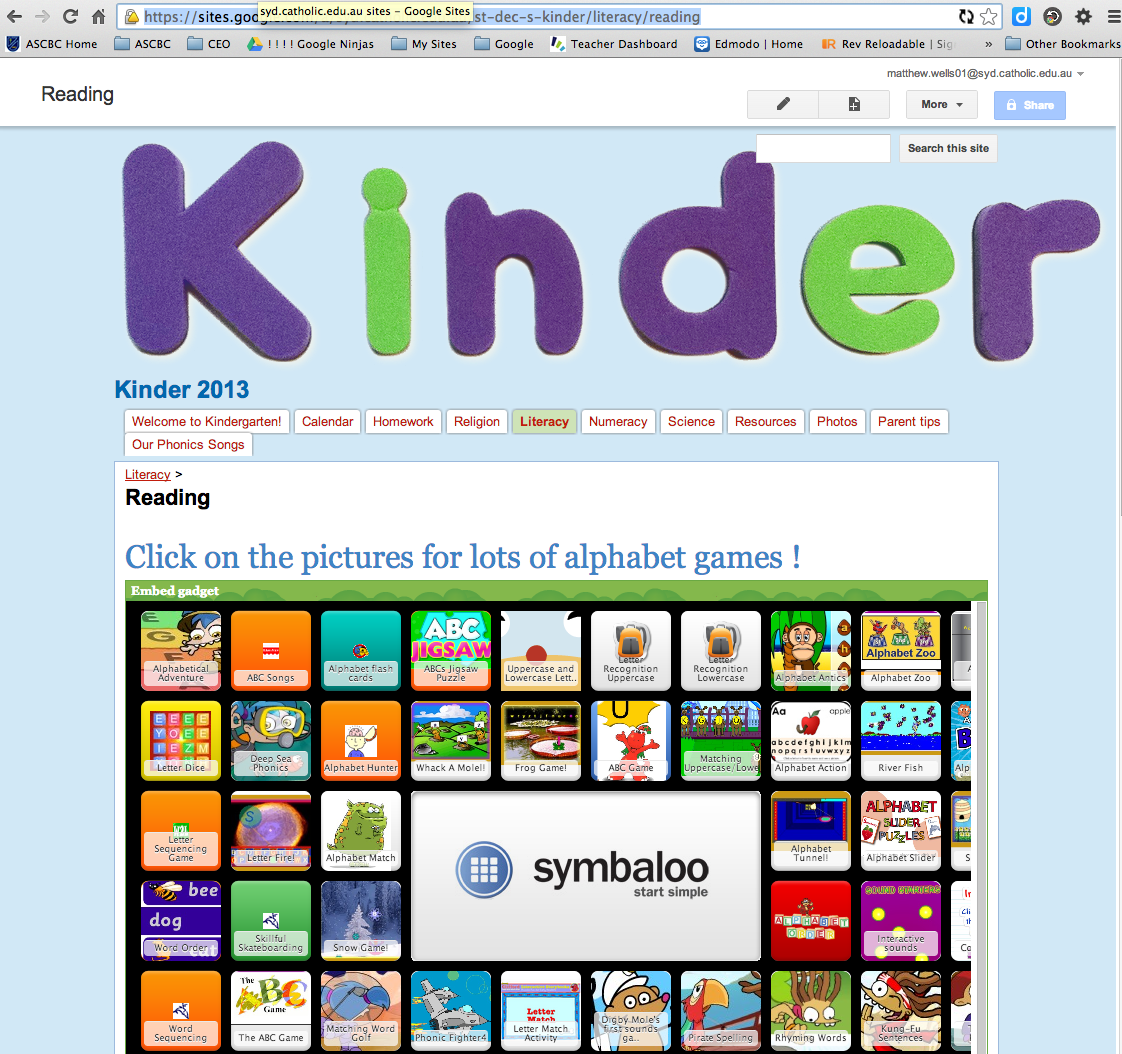
A number of colleagues have been reporting that objects (typically the contents of iframes) are no longer displaying on their Google Site when using Chrome (see image at right - Thank you Maree Rooke for sharing). The objects appear when using another browser such as Internet Explorer or Safari. This appears to have happened with latest release of Chrome (Version 30). Originally we thought that this may have been some kind of bug in either Google Sites or the Chrome Browser.


The Solution :)
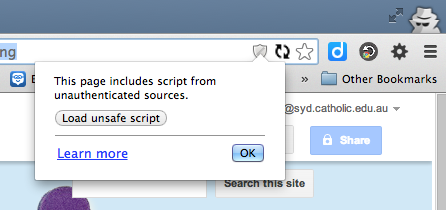
Version 30 of Chrome will not display these objects due to the “potential”  that the page contains insecure content. This is shown in the address bar of the browser using a shield icon.


Some may argue that a more "in your face" warning about impending insecure content is more appropriate. I in fact like the subtle way this is done - now that I know what is happening :)


To enable the embeded content, simply click on the shield. A message will appear warning you that the page includes a script from unauthenticated sources. If you know that this script is okay (that is you have placed the iframe on your page) simply click the “Load unsafe script” button. This will enable your content throughout the site.


The site should now be displayed as intended. You will notice that the padlock in the address bar as a small warning triangle present.

Thank you fellow GCT +Adele Raemer for your clear YouTube video.


I hope this helps!!!


Tuesday, 7 May 2013

New Question Types in Google Forms

For those of us that use and love Google Forms these two new question types may be of great assistance. There is now

  • the ability to input a date (including the option to select from a calendar view)
  • the ability to input a time.
When adding a date question you have the option of whether or not you wish to include the year or even if you wish to include a time.

When using the time field you can either enter a time of say an event or simply the duration of the event.

Have fun playing with these new features :)

Thursday, 2 May 2013

A New First...for me

Well I have toyed with the idea for a while - but I have taken my first plunge in to preparing some video tutorials for my students.

Those who know me would say that this was NOT a first. That I had in fact done all kinds of tutorials about different technologies and uses in the classroom.

What makes this different is that I am setting about preparing videos around the course I teach  - a subject in NSW called Information and Software Technology and I am sticking them "out there" for others to provide feedback on and use.

This for me is scary! 

But based on my experience of over 30 years of working in high school teaching, I think its a fear shared by many high school teachers. Is what I am doing correct? Have I done this the best way? Is this going to best benefit my students? Is my style of teaching okay? Am I covering the syllabus correctly? Is everything factually correct?

As a beginning high school teacher many years ago, I was given my timetable, my programmes my students - was sent in to the classroom - and then the door was closed. 

I was on my own.

And I have survived (somehow)

But what this tends to do for many teachers is force them to work on their own. They don't seem to collaborate in the same that I see my primary colleagues work together.

I would be very interested in hearing from anyone who reads this blog post as to their feelings/beliefs about collaboration between high school teachers - within a school, within a system, globally.

I know for me one of my personal challenges in recent years is to take the chance and just start putting stuff "out there". For me, personally this is a struggle because I do worry that its not good enough or might be wrong. But this process has taught me a lot!

At times it is reaffirming - its great to receive a positive comment or a remark that someone is using something that you have created.

But its also a way in which I can learn - that I can improve.

I believe as an educator that being prepared to take risks - being prepared to make mistakes (lots of them) is such an important part of learning and improving.

I could quietly create these resources for use by MY students in MY classroom - but I choose to share them because hopefully it will make someone else's work a little easier - just as I stand on the shoulders of others who have shared their wonderful work with me.

I think its a shame in this day and age - where there is so much talent in our schools - where we can all be publishers of all kinds of digital media - that we spend so much money purchasing text books that don't really meet the needs of a our modern classroom.

Take a chance today. Share with your (global) colleagues something that you have created for your classroom. A great learning experience. A collaborative project. A story.

TEAM - Together Everyone Achieves More

Saturday, 2 February 2013

And now for something completely different... A Blog Post

Its been a while between posts and a lot has happened.

Tonight I have taken the time to bring my various posts from around the web together under my (relatively) new CEO Cloudshare account.

What is Cloudshare I hear you ask? Cloudshare is the Catholic Education Office, Sydney's deployment of the Google Apps For Education (GAFE) environment.

We now have a system wide deployment of a collaborative virtual learning environment and the challenge for myself and others in my role is encouraging staff to take advantage of this powerful collaborative tool.

Teachers are generally time poor - and this is not going to improve as we all are called to implement the NSW Board of Studies Syllabuses for the Australian Curriculum. I have written before that the only constant in modern life - is CHANGE.

If we get this right - instead of working in isolation (as individuals or individual staffs), teachers can collaborate and share the work load with others that have an interest in their area of teaching - at a time and place that suits the individuals involved.

To steal a line I heard recently - you don't have to be sitting at your desk to work.

You don't have to be in the same room to work collaboratively. With Google Hangouts you can easily connect with others face to face, sharing resources, hosting virtual meetings - all from a location that suits you - your classroom, desk in the staff room, home, beach - where ever.

With Google Drive its easy to share all kinds of resources as well we collaborating on teaching programs using Docs and developing teaching resources that can be used by multiple teachers. Teachers create wonderful resources for their students and their classrooms - but all too often these resources don't get shared. And the task of creating such resources gets replicated time and time again.


There are other tools available too such as the social bookmarking tools Delicious and Diigo. Twitter is another great tool for collaboration.

But my experience is that many teachers find it hard to engage professionally in an online world. I would love to hear feedback via comments as to why this is so? Are you reluctant to engage in online collaboration? Are you an avid user? Have you developed a PLN? What are your thoughts?

Later this year (June 14 and 15),  I will be leading a cohort at the IWBNet Third National ITL MasterClass Conference, which will have at its focus how contemporary educators can make use of such online tools. I look forward to the journey and challenges that preparing for this conference will bring.


Sunday, 10 April 2011

You don't teach healthy living by merely locking the refrigerator

Thanks @morry_tweet!

In recent times we have seen our society being divided up and referred to by “cultural generations”. Terms such as The Baby Boomers, Generation X and Generation Y are used to describe groups born within a rough time period that have certain shared cultural experiences.

A term that became popular back in the1960s (and is still widely used today) to describe the differences between generations, is the Generation Gap. Bridging the Generation Gap continues to be a struggle for all parents (and teachers).

Our students belong to what is termed Generation Z - the so-called “net” generation. They have grown up in a highly technological world which has seen them rapidly embrace connected technologies such as mobile phones and the Internet.

In many cases they have left the older generations wondering what this is all about.

As adults we naturally care for their well-being but are often daunted by not understanding the technologies with which they are engaged and fear for their safety.

As this technology is not going away, may I highly commend to all parents and teachers that you, for the sake of your children if not for yourself, take the time to understand your childrens' world. Engage in the online social world so that you are in a position to understand what is really happy.

Just as in so many aspects of life - the media loves nothing more than a story that highlights the negative side of human behaviour. Is it any wonder that all we ever really hear is bad things about the online world???

Whilst FaceBook, Tumblr, MySpace, Twitter, etc may not be for you - get in and find out what its all about. Merely (attempting to) blocking students access to such technology will not help them. Banning them will often only bring resentment.

It is important we build relationships with our children - that they feel they can come to us when they have a problem. They are not going to come to us with an online problem is they feel we are simply going to ban them when they have had a problem online.

At all times, we must always keep in mind that technology in itself is not evil and if a child comes to you with a problem involving technology - that at the heart of the problem is human behaviour.

As a wise colleague once said

"You don't teach healthy living by merely locking the refrigerator".

Wednesday, 9 February 2011

When Age is NOT About Chronology

Anyone who stops learning is old - whether at twenty or eighty (Henry Ford)


Today I was watching a video with my class. We are currently exploring the origins of the Internet and were watching Nerds 2.0.1 - an entertaining look how the Internet has come to be. Whilst this documentary was produced in 1998 (at the height of the dot com boom) and in some ways is dated, it contains lots of interesting information.

In the first section, the host, Robert X. Cringely (writer Mark Stephens) laboriously highlights the speed of change in the world of technology - especially in Internet development at that time.

He likens an "Internet Year" to the concept of a dog year; ie things were happening so fast that one year seemed like seven - time was racing by - change was happening rapidly.

A theme was developing in my boys' minds that "this was all about young people!" That technological change was for the young! Many boys cited the experiences of observing their parents struggle with technology as "proof" of this theory.

As a more mature member of the class, I offered myself as an example to disprove their generalization, only to be told that I was different because "you studied that to be a teacher of this subject sir!" Some did concede that it was possible for some (chronologically) older people to survive in this technological world.

I was reminded of the much talked about "Digital Native". Simply put - the dividing of the populous into Digital Natives and Digital Immigrants based on ones chronological age.

Personally I have drawn issue with those that simply use this model.

Firstly, rather than two distinct groups, such classification would be better described along a continuum. People do not neatly fall into the two groups.

Secondly, whilst Presnky is typically correct about the kinds of technological experiences and stimulations to which the younger generations are exposed resulting in different thinking patterns- I see many examples daily of young people displaying the characteristics of a Digital Immigrant and Digital Natives who are far more mature than The Prensky model would typify.

Some make the mistake of assuming that because our children have always had this technology around them, that somehow they are better equipped to survive in this rapidly changing, technological world.

The reality for me is that this is not about age.

One of the few constants in modern life is CHANGE.

The most important skill we can have is the ability to learn - to unlearn - and to relearn.

The illiterate of the 21st century will not be those who cannot read and write, but those who cannot learn, unlearn, and relearn. (Alvin Toffler)

When we no longer have the ability or desire to adapt, to change, to learn - this is when we truly age.

Our job as educators must primarily be to instill a love and passion for learning in our students. A desire to find the answer.

Who dares to teach must never cease to learn. (John Cotton Dana)

Our students must see in us our own personal quest for understanding the world around us. Our ability to adapt to the change which is the reality of the world around us. Our passion, not only for our subject areas, but for learning in general.

If we fail to do this we truly are old - whether we be twenty or eighty!

Thursday, 16 September 2010

Bringing It All Together (2010)

I have recently started using Google Docs with some of my classes. It has been an interesting process in itself. In order to do this, I took part of a lesson to get all students to create Google accounts, using their school email accounts. The benefit of this is that it becomes easier for me to track students - especially when sharing documents.

Google Docs has proved to be a great resource when students are engaged in group tasks. One student creates the document and shares it with his group members (the fact that accounts are based on school email addresses makes this sharing easy!!!). I typically ask the groups to share the document with me.

Google Docs is also a great tool where a teacher would like to observe students engaged in individual writing tasks.

There are many benefits for me in getting the boys to use a Google Doc to record their group work.


It gives them a place to record their discussions. One person does not have to be responsible for recording all the discussion. Each student can contribute to the document. Group members may take responsibility for different parts of the document.

As a teacher I can track the group discussion through their document. Since the students share the document I have edit rights. I can use colour coding to suggest grammar or spelling corrections. I can also leave comments suggestion areas that still need to be discussed or elaborated.

Tracking student work however involved me having to wade through my Google Docs file list of "files shared with me". I must admit that I was finding this somewhat time consuming.

Enter the idea of bringing multiple student documents together in one page using our Apple Wiki and Blog Server.

I simply use the following HTML code to embed the Google Doc


The width and height can be adjusted to suit your page.

The result is shown below


Students can only see their own Google Doc and those that have been shared with them. As a teacher I can see and interact with all of the student pages on one page. Students can quickly and easily access their work through the class wiki.

Thursday, 24 June 2010

Contemporary Dictation

Let me preface this post by saying that I am neither an English teacher nor trained in ESL (English Second Language). I am however, a secondary teacher in a school with with a very high LaBOTE (Language Backgrounds Other Than English) population. Raising our overall literacy has been and continues to be a great challenge for all our staff. We are constantly examining ways to assist our students in the key areas of
  • reading 
  • writing 
  • listening and 
  • speaking 
My role as eLearning Coordinator continually challenges me to examine my own pedagogies and try new ways - especially ways in which utilise technology in our teaching. I am also especially aware of the time pressures faced by the teachers I mentor.

Recently I was reflecting on how I might be more effective in my classroom. Like all teachers I have the pressures of covering the curriculum whilst ensuring I can also assist my students to improve their literacy skills.

I decided to try and come up with a dictation exercise that would enable students to potentially take on the task anytime, any place, anywhere; provided the teacher with meaningful data about their students’ literacy skills and did not overburden the teacher - in fact allowed the technology to perhaps reduce the teacher’s workload.

All students have their own laptop machines which have sound enabled. Most use earpieces to listen to their machines rather than relying on the built in speakers.

I also wanted the boys to make use of the technology available to them. We do not restrict the boys to one particular word processor so they could choose their favourite for the task. The boys were not discouraged from using spell checkers, grammar checkers, the dictionary on the machine or paper version of the dictionary.

I wrote a summary passage based on work we had just completed in class. The passage was based around the current topic and provided a means of revising work. I recorded the passage using GarageBand (though I could also use freeware such as Audacity to do this) and saved it as an MP3 file. This file was placed in a Wiki page that also included the instructions about how to complete the task.

The boys were to listen to the passage and type it up in their favourite word processor. Once completed they were to export their work as a PDF file and submit this file to the teacher’s drop box. This was so the teacher had a copy of their work.

A time limit was placed on the task, however, the boys were able to replay the passage, pause the passage at their own leisure as many times as they needed in order to complete the passage given the time restriction.

Once all boys sent their PDF files to the dropbox, I posted a PDF copy of the passage to the wiki. I got the boys to download the original file and then the magic began!

Using Adobe Acrobat Professional, I got the boys to make use of the document compare feature. This allows the boys to “mark” their work and see differences between their passage and the original dictated piece.


The advantage here is that the boys get immediate feedback about their work and can ask questions of their peers or teacher if uncertain.


The teacher (as they have copies of the files submitted by the students) can also examine the student passages looking for trends, strengths and weaknesses from within the cohort.


In my mind there were a number of advantages in conducting this task in this manner. These include but are not limited to:
  • students are able to work at their own pace 
  • this task could be carried out by students at home 
  • the task does not have to involve the whole class 
  • a variety of passages may be made available to provide lesser students a chance to achieve and more capable students to be challenged 
I have tried this activity with two Year 10 groups and the student feedback was quite positive. I look forward to attempting some variations in the future.

I believe this task can also be a great tool to assist teachers in modeling examples of good writing to students as well as demonstrating the use of different text types.

Somewhere recently I was reading about dictation. The mention of the word took me back to my old primary school classroom, some forty odd years ago. I was tempted to dismiss dictation as a worthwhile activity as for me it seemed old fashioned, boring andvery teacher centred. I was impressed with the thoughts of Davis and Rinvolucri (1988) who stated that “decoding the sounds of (English) and recoding them in writing is a major learning task”. This is a skill that I believe we as teachers take for granted. It IS a VERY difficult process especially for our ESL and LaBOTE students.

Traditional dictation lessons can also be fraught with problems when working with Year 9 and Year 10 boys. Students can find the task boring, especially if the passage is not carefully selected. Students can disrupt possible learning by constantly interrupting the dictation with “distractor” questions/statements such as constantly asking for repetition of words, suggesting the teacher is reading to fast or slow, etc. This becomes even more of an issue in unstreamed classes where there is a wide range of literacy and oracy abilities can make running the traditional dictation difficult.

Traditional dictation lessons involve the teacher reading a passage of text. There can be a variety of styles in doing this. One is to read the entire passage once through at a slightly slower than “normal” speed. This is to provide a context for what the students are about to write. The teacher then rereads the text at a much slower speed for students to copy. This is possibly followed again by an almost normal read through again so students can hear the passage in context. After writing the text the passages are compared either by the student, a peer or the teacher. The emphasis is on the student reproducing in written form that which has been read.

A variation of this is the Dictogloss. Here the teacher reads a passage and the students make notes based around keywords from the text. Following the reading, students reconstruct the text in their own words. Here the emphasis is on the accuracy of the meaning of the student texts as well as spelling, punctuation and grammar.

These forms of dictation are quite time consuming and centred around teacher control of the activity. Whilst the passage can be selected to reinforce subject content, both revising content and introducing new content, teachers will often not employ the exercise as it takes away from subject based teaching activities.

Friday, 23 April 2010

Is it OK to Publish Unfinished Ideas?

My experiences in traditional education suggest this is NOT okay!

The traditional publishing process involves edits, rewrite, re-edits, more rewriting and even more re-edits and rewrites before the publication of the “final product”.

… and often this “final product” is not really final. The author may be struggling to meet deadlines (like handing in an assessment task) or their ideas later change.

This concept of writing suggests that writing (and indeed the development of ideas) is a linear process.

Clearly, in my opinion, this is NOT the case. It is very much cyclical in nature with ideas constantly being challenged and reviewed. As a teacher, one of our roles is to challenge students ideas.

But why should this role be exclusively the teacher’s domain. Getting peers to review can be just as – if not more – powerful. Like it or not students listen to their peers – something they don’t always do with their teachers.

When I recently suggested my Year 10 students publish their unfinished work and seek others’ opinions – they immediately baulked at the idea. They were concerned that others would simply steal their hard work rather than comment and suggest improvements.

I then posted a Blog entry asking the question:

      “Is the best way to protect your work, to publish it for all to see?”

and asked the boys to comment.

The boys raised a number of interesting points:

  • by sharing your work during the production process, all can see the origins of your work
  • you are able to draw on others’ ideas through their feedback
  • they are able to self evaluate their own work by comparing their own work to others’
  • all are able to input into the originality of the work.

This last point triggered a class discussion where the boys were raising the point that they know some students “always” (not sure its always but that’s their words) simply copy and paste work from the “net” and achieve good marks consistently. By publishing work openly the boys were challenging each other to the origins of the work. One boy even posted a comment that said…

     “Hey. That piece of work came from http://www.nameofsite….”

I believe that for too long too many good ideas never saw the light of day because we were afraid of putting our thoughts our there because they were incomplete, partially formed or we didn’t have all the answers.

Today through the power of the “Net” and Web 2.0 we can get our ideas out there easily, whether they be text based, audio or video and get feedback from others so that we can continues to evaluate, change or perhaps reinforce our own thoughts and ideas and maybe even help someone else.

Monday, 21 September 2009

Module Ten - And Now The End Is Near... (Web 2.0)

Wikis really sum up the best of Web 2.0 as it relates to 21st Century Learning. They are all about collaboration!

Essentially wikis about collaborating to create a shared document or collective knowledge. In my classroom I am always trying to get students to understand the concept of sharing and the difference between sharing and copying. When doing any sort of project based work I encourage students to share their knowledge. If i share something I find – and someone else does the same we are halving the work for each other!

One of the great advantages of Wikis is the ability to track changes. Provided you set them up correctly, the administrator has the ability to see who is making changes and what changes they are making. Within the classroom situation it proves to be a great way that students can monitor each others’ contributions.

It has also been an interesting exercise for me in seeing students actually stop one another from “copy and pasting” from other sources as they are constantly checking up on one another.

The other beauty of Wikis is they are not restricted to a physical classroom. Contributions can be made by anyone with appropriate access. The mother of all Wikis – Wikipedia – is a great example of what can be achieved through collaboration and self monitoring.

Web 2.0 tools are constantly growing and evolving. part of this natural evolution is that previously free sites ask payment – some add advertising – and then along comes a free one to replace what was there pr along comes a completely new technology. It is important in education that we as teachers are constantly evolving with the technologies – that we remain open to change and new learning. That we continue to explore the educational opportunities presented to us by Web 2.0 and beyond…

Module Nine - Let's Get Connected (Web 2.0)

I have only really become a fan of social networking via Web 2.0 technologies this year when I joined amongst other things – FaceBook. So why – after much resistance to be honest – did I join FaceBook? Or maybe the real question is why did I not set up a FaceBook account earlier.

I hate to admit – it’s kind of uncool – but the main reason was out of ignorance. Like many of my vintage, I heard the many(??) horror stories (how many are in fact urban myths) about FaceBook. About identity theft and gossip and … well I am sure we all have a story to tell to convince others about how “bad” it is.

Why did I join? Well I do not like making judgements out of ignorance. Besides I consider myself to be a fairly sensible individual with a good understanding of privacy and online common sense. I have also used online messenging services (such as ICQ) for many years. I was also keen to engage in at least one of the social networking environments my students were spending so much time. What is the appeal? (By the way I DO NOT engage with students in this environment)

Armed with knowledge I created my account and made sure I set as much privacy as I believed important and started to create my online network.

I know have over 400 “friends”. My use of the term friend is simply the expression used in FaceBook to describe someone with whom you share. I would not consider many of these people true friends and as such do not share the sort of information that I would share only with my closest friends.

I have found the whole experience VERY rewarding as I have managed to stay in touch with many acquaintances made around the world through my basketball and wheelchair basketball careers.

I have also taken to the use of Twitter. Whilst my tweets feed my FaceBook account I mainly use Twitter for Professional Contacts and Professional Social networking. Through the tweets of people I am following I am able to discover great readings and resources in areas that interest me and am then able to share these with my “followers” by retweeeting or simply tweeting good material i find.

The Twitter environment is one that is constantly changing and my list changes. Some people who I followed early on now only seem to tweet about their favourite coffee. If i don’ want to hear about it I simply stop following. I am in control!

In keeping with my previous posts – Twitter helps me by keeping me abreast of current trends in 21st century learning. As well as reading the likes of Mark Pesce, Will Richardson and Kevin Honeycutt, I also keep up to date with news from the Board of Studies, stay abreast of ABC news and have a laugh via tweets from Rove and Will Anderson.

It’s all about balance.

Module Eight - Pushing Rather Than Pulling (Web 2.0)

One thing we all understand about 21st Century living (in my opinion) is that we are all time poor. There is never enough hours in the day to do all we want.

For me one of the more difficult tasks relates to staying up to date with current information re 21st century learning and also staying in touch with latest technology trends – whether that be with my treasured iPhone or technology in general. Besides my “professional” interests I want to stay in touch with what’s happening on the world basketball stage (FIBA), the world wheelchair basketball news (IWBF) together with current news.

There is no one site I can go to that covers MY interests and i no longer (did I ever???) have the time to trawl through a range of sites to see if there is anything new.

Enter the world of RSS…

For me nothing new in this module as I have been using RSS feeds for a while now. I also have my own Google Reader feed. The only difference between the average user (perhaps???) is that I use my mail program to automatically download my RSS feed so that I can preview this information even when i am offline and “flag” to follow up later.

Do I read everything that comes through my RSS data feed. More often than not – NO!I don’t have time to read it all! But the summary receive enables me to quickly skim – sometimes read in depth – and more often than not – book mark in my delicio-us for later consumption when i set aside my reading time!

Module Seven - mmmmmm Delicious (Web 2.0)

The first time I was introduced to delicio.us I just did not get it!!!

… but back then I also tended to work less collaboratively and was no where near as engaged as I am in a Web 2.0 World.

Since re-establishing my delicio.us presence earlier this year I cannot believe I lived without it!

One thing has changed for me this year. I now receive far more information across my virtual desktop (read computer). I am using Google Reader to help track recent posts relating to 21st Century Learning and also am constantly receiving a Twitter feed – with most of the people I am following have a similar focus of education reform and 21st Century Learning.

Through these sources (together with the more traditional mailing lists to which I subscribe) I am constantly inundated with information. Often too much to read there and then.

Enter delcio.us

If I see something that catches my eye and I do not have time to read it there and then, I take a few moments to enter it into my delicio.us account. Later when I have time I can go back and follow the link.

Another powerful feature is the ability to “tag” items so that i can call up bookmarks based around specific topics like articles relating to negative use of social networking sites or science related sites.

The real power was brought home to me one day when I was away from my computer(s) and was speaking to a primary school principal about a great website for primary school cybersafety. I was able to quickly access my delicio.us account from my iPhone and find the site for the Principal.

When we add in the ability to “follow” other delicio.us users we really start powering along. Rather than starting a Google search for resources, I can go to one of the people I am following who has an interest in the area I am searching and I can start by looking at sites they have bookmarked. This is a great way for KLA areas to keep track of GOOD web resources.

At school, I have encouraged staff to set up delicio.us accounts and for KLA groups to meet to decide on useful tags that can speed up access to resources for specific topics. Instead of everyone working in isolation – all can contribute! we don’t have to constantly re-invent the wheel.

Right now I am still feeling my way with student use – not too sure why I am hesitant – but I believe that I will have an account setup for next year whereby I can easily share resources with students. I know this can be done with myclasses however, delicio.us just makes it easy for an all in one solution that is easy to manage.

Feel free to add my to your network http://delicious.com/mbw_61

Sunday, 20 September 2009

Module Six - Creating and Communicating (Web 2.0)

Well unlike previous units – this module introduced me to something new. I had not experienced Glogster before. Glogster certainly introduces a new dimension to blogging in that it may well appeal more to our visual learners as a way of recording their reflections. I can also see it as a great too when working with Visual Arts or even Music students.

Bubbl.us was introduced to me by some of my Year 9 students and has proved to be a very useful tool to enable students not only to mind map – but to do so in a collaborative environment. In a class where group work is common and planning is a pre-requisite of project work – bubbl.us provides an ideal environment ofr students to share their ideas.

Students are encouraged to include me as a “friend” within their tasks so that I can also monitor and provide feedback.